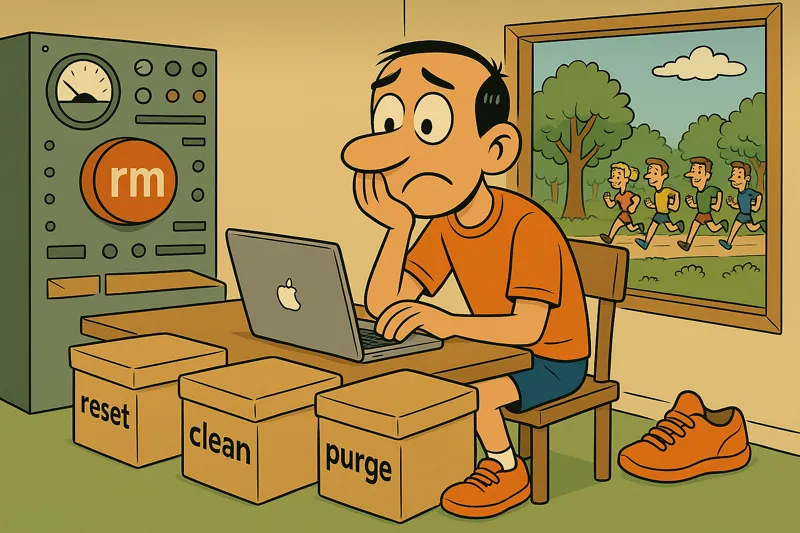
The broken dependencies dilemma
When working with Swift Package Manager (SPM), you’ll eventually encounter a compilation error that makes no sense. You’ve tried building multiple times, restarted Xcode, but the error persists. The solution often lies in properly cleaning SPM caches and artifacts, but which command should you use?
There are multiple ways to “clean” in SPM, each with a specific purpose. Using the wrong command may not solve your problem or, worse yet, force you to download gigabytes of dependencies again.
The four paths to clean
SPM offers three official commands plus a manual alternative. Each affects different parts of the system:
| Command | Deletes local .build | Deletes Package.resolved | Deletes global cache |
|---|---|---|---|
| swift package clean | ❌ (only compiled binaries) | ❌ | ❌ |
| swift package reset | ✅ (complete) | ✅ | ❌ |
| swift package purge-cache | ❌ | ❌ | ✅ |
| rm -rf .build | ✅ (complete) | ❌ | ❌ |
Swift package clean
swift package clean
What it does:
Removes only the final compiled binaries inside the .build folder, but keeps downloaded dependencies and intermediate files.
When to use it:
- After changing build configurations
- To force a complete rebuild without re-downloading dependencies
- When binaries are corrupted but sources are fine
💡 Does not download dependencies again nor resolve package cache issues.
Swift package reset
swift package reset
What it does:
Completely removes the .build folder (including downloaded dependencies) and the Package.resolved file.
When to use it:
- When there are conflicts in dependency versions
- After significant changes to Package.swift
- To resolve “dependency not found” errors
- When Package.resolved is outdated or corrupted
⚠️ The next build will download and resolve all dependencies from scratch. This can take several minutes depending on the number of packages.
Swift package purge-cache
swift package purge-cache
💡 Available from Swift 5.7 onwards.
What it does:
Removes the global package cache located at:
~/Library/Caches/org.swift.swiftpm/
This cache contains cloned repositories and binary artifacts shared across all your projects.
When to use it:
- When multiple projects have the same issue
- After updating Xcode or Swift tooling
- To free up disk space (can take up several GB)
- When you suspect the global cache is corrupted
⚠️ All your projects will need to re-download common dependencies.
rm -rf .build
rm -rf .build
What it does:
Manually deletes the complete .build folder, similar to reset but without touching Package.resolved. It’s less aggressive than reset because it doesn’t re-resolve dependencies.
When to use it:
- To clean build artifacts while maintaining version resolution
- In CI/CD scripts where you want full control
- When swift package reset is not available
💡 Preserves Package.resolved, which means dependency versions won’t be re-resolved.
Troubleshooting strategy
Level 1: Light cleanup
swift package clean
💡 Try the least invasive first. Solves 30% of issues.
Level 2: Complete project reset
swift package reset
💡 If level 1 fails. Solves 60% of remaining issues.
Level 3: Purge global cache
swift package purge-cache
swift package reset
💡 For persistent issues or those affecting multiple projects.
Level 4: Nuclear
rm -rf .build
rm Package.resolved
swift package purge-cache
💡 Last resort. Complete fresh start.
Real-world use cases
Scenario 1: Error after updating Xcode
swift package purge-cache
swift package reset
💡 Build tools changed and the cache may have incompatible artifacts.
Scenario 2: Dependency version conflicts
swift package reset
💡 You need to re-resolve all dependencies with the new constraints.
Scenario 3: Disk space full
swift package purge-cache
💡 The global cache can grow to several GB without you noticing.
Scenario 4: CI/CD builds
rm -rf .build
💡 In continuous integration environments, you want clean but reproducible builds with versioned
Package.resolved.
Understanding the components
.build (local)
- Current project’s build artifacts
- Project-specific downloaded dependencies
- Intermediate build files
Package.resolved
- “Lockfile” that pins exact dependency versions
- Guarantees reproducible builds
- Should be versioned in Git for shared projects
Global cache
- Shared across all your Swift projects
- Contains clones of dependency repositories
- Pre-compiled binary artifacts
- Can reach several GB over time
Best practices
✅ Version Package.resolved in Git to ensure the whole team uses the same versions
✅ Use reset after changes to Package.swift to ensure clean resolution
✅ Purge the cache periodically if you work with many projects
✅ In CI/CD, keep Package.resolved but delete .build for clean builds
❌ Don’t ignore .build in .gitignore - it’s already ignored by default
❌ Don’t delete Package.resolved unless you really need to re-resolve versions
Conclusion
Understanding the difference between these commands saves you time and frustration. Not all build issues need a nuclear cleanup:
- clean → Only compiled binaries
- reset → Complete project + Package.resolved
- purge-cache → Shared global cache
- rm -rf → Surgical manual control
The next time SPM shows you a strange error, you’ll know exactly which tool to use.
Keep coding, keep running 🏃♂️